
User scripting quick start guide
In addition to the local and Web App interfaces Ogi3 can be controlled from a directly connected computer by sending commands via the USB BOARD PROG port.
Requirements
- A PC/laptop with a USB-A port.
- A USB cable provided with Ogi3. Note that “charging only” cables will not work due to the lack of data transfer lines.
- A serial port monitor or a programming library able to establish the connection with Ogi3 (connection details: 115200 Baud Rate, 8 Data Bits, 1 Stop Bit, no Parity).
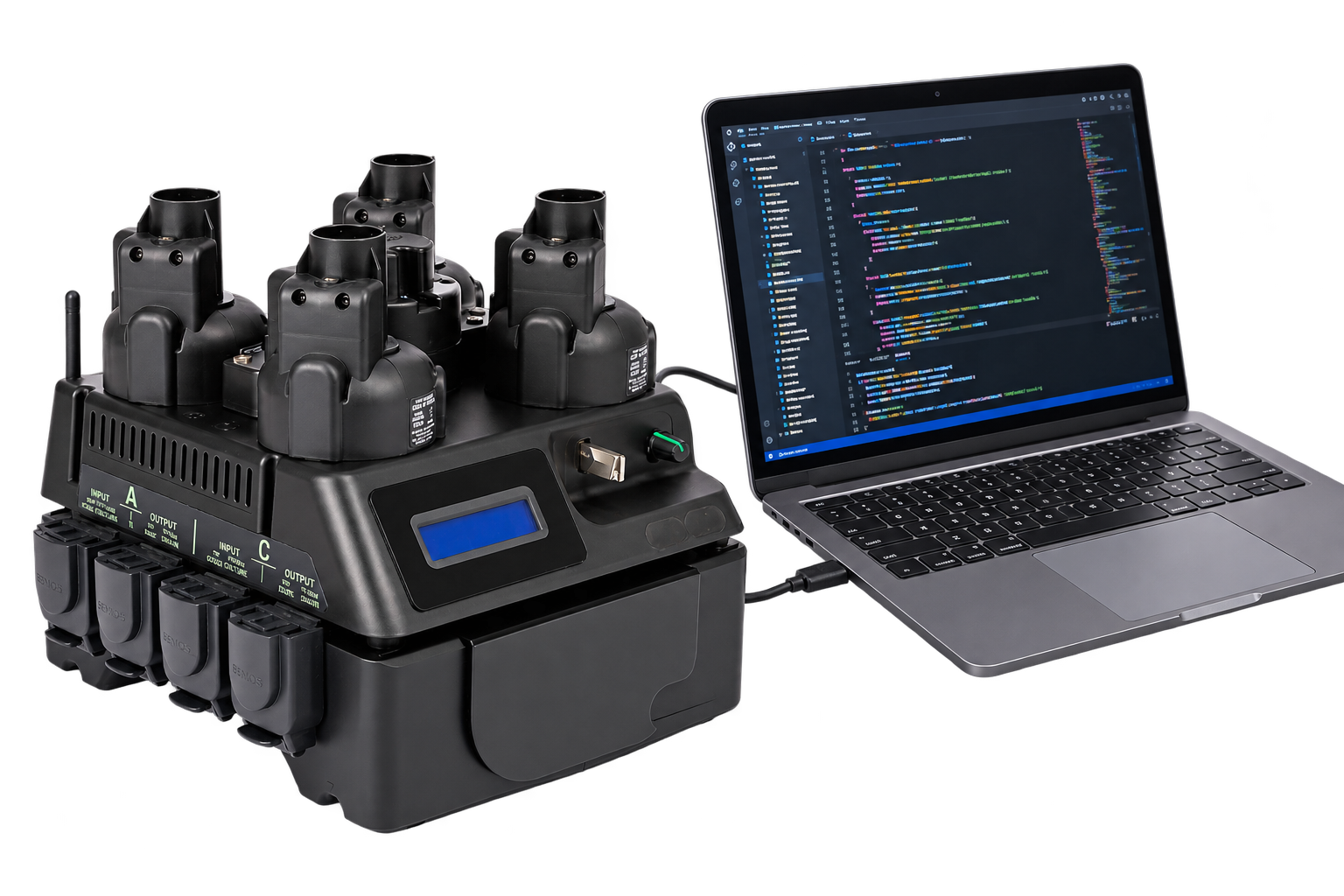
Software required
You can use a serial monitor of your choice (e.g., Termite for Windows, CoolTerm, or Arduino IDE) or your preferred programming language.
If you are familiar with Python, we provide a Python library ogi.py as well as example scripts in our GitHub repository OGIBio/user-scripting. To start using it, clone the repository to your local folder:
git clone https://github.com/OGIBio/user-scripting
You can also download the library ogi.py alone and write your own scripts de novo.
The ogi.py library contains two Python functions:
connect_OGI3(port=None, automatic_reconnect=False, exit_on_fail=False, verbose=False)
which enables connection to Ogi3 and has the following options
port: defines the serial port to which Ogi3 is connected. If not specified, the command will attempt to find Ogi3 by scanning available serial ports. Explicitly specifying port name is necessary if more than one devices are connected to the same computer directly or via a USB hub. Default: None.automatic_reconnect: if True, the script will try to re-establish the connection if the device has been temporarily disconnected. Default: False.exit_on_fail: if True, the script will execute Python’s exit() function if the serial connection breaks. This is useful when running the script is not desirable if a previous command failed to execute (which applies to most cases, except when testing scripts). Default: False.verbose: if True, additional information is printed to the standard output when executing connect_OGI3 or sendcmd Default: False.
and
sendcmd(command)
which sends a human-readable “command” to Ogi3 and returns command-specific payload (e.g. the measured OD or temperature), or an error code in the case of failure. Available commands are listed in Section 7 of User Manual. Section 7 also provides more information about the communication protocol, which is useful if you do not want to use ogi.py but prefer to write your own commands for sending/receiving data from the device.
Testing the connection & Sending Commands
Open the serial monitor and send the following command:
echo
Ogi3 should respond by sending the command back to the serial monitor.
The following Python script sends the same command to Ogi3:
from ogi import sendcmd, connect_OGI3
connect_OGI3(verbose=True)
print(sendcmd('echo'))
On Windows, this should give the following output:
searching for ports
COM9 – USB Serial Device (COM9)       // this may be different on your PC
auto-detected port: COM9
Serial connection established

sending the command: echo
Note that
- Windows recognised Ogi3 as “USB Serial Device”. This may be different on your PC.
- The bioreactor will restart unless you set the DTR and RTS flags off. This has been done in ogi.py, i.e., the bioreactor will not restart when using this library.
sendcmdin this example does not return any payload – this is normal behaviour for theecho
searching for ports
COM9 – USB Serial Device (COM9)
auto-detected port: COM9
Serial connection established

sending the command: get temperature A
0.3136,23.4     // the values will be different for your system
The last line is a pair of numbers: time since Ogi3 was powered on (in hours), and the current temperature measured in degrees Celcius by temperature probe A.
If a non-existing command is sent to Ogi3, sendcmd will print an error message and return “None”. For example, the following script:
from ogi import sendcmd, connect_OGI3
connect_OGI3(verbose=True)

print(sendcmd('non-existing-command'))
will output:
COM9 – USB Serial Device (COM9)
auto-detected port: COM9
Serial connection established

sending the command: non-existing-command
('non-existing-command', 'ERR', '-1')
None
Example script for running a batch culture experiment
The following Python code starts a batch culture experiment on the device:
from ogi import sendcmd, connect_OGI3
connect_OGI3(verbose=True)
sendcmd('choose OD cal 0')
sendcmd('set exp length 24')
sendcmd('set sample interval 5')
sendcmd('set motor rpm A 3000')
sendcmd('set ambient temp 23')
sendcmd('set temp control target A 37')
sendcmd('set temp control A 1')
sendcmd('start batch culture')
While exactly the same experiment can be set up via the web app interface or directly from the device the power of user scripting becomes evident when one wants to perform experiments that are not directly implemented in Ogi3’s firmware.
For example, the following script starts a batch culture experiment, initially runs it at room temperature, and then, after 8 hours, enables incubation at 37 deg C:
from ogi import sendcmd, connect_OGI3
import time
connect_OGI3(verbose=True)
sendcmd('choose OD cal 0')
sendcmd('set exp length 24')
sendcmd('set sample interval 5')
sendcmd('set motor rpm A 3000')
sendcmd('set ambient temp 23')
sendcmd('start batch culture')
t=time.time()
wait_time = 3600*8 # 8 hours = 3600*8 seconds
    while time.time()-t < wait_time: # 8 hours = 3600*8 seconds
    print("Waiting for temperature ramp up... ", int(wait_time-(time.time()-t)), " seconds remaining", end="\r")
    time.sleep(1)
print("Incubation started")
sendcmd('set temp control target A 37')
sendcmd('set temp control A 1')
This approach enables the user to delay growth to, e.g., be able to sample the culture at a more convenient time.
See more examples at OGIBio/user-scripting These example show, among others, how to
- directly control the pumps of the Liquid Control Module
- perform pH, oxygen, and fluorescence measurements
- program more advanced experiments such as the serial dilution experiment
For more information about available commands, see Section 7 of User Manual.
Example: On-Demand Fluorescence Measurement
For devices with the Fluorescence Module (spectrometer version) installed, the following script shows how to measure fluorescence independently of any experimental mode. We first connect to the device as usual, then set up the fluorescence module:
from ogi import sendcmd, connect_OGI3
connect_OGI3(verbose=True)
sendcmd("set fluo LED1 intensity 255")
sendcmd("set fluo gains HIGH")
sendcmd("set fluo integration times 100")
After connecting to the device, we set the intensity of LED1 (“UV LED”) to the maximum (255), gain to high, and integration time to 100 ms.
We can now measure fluorescence by collecting the entire spectrum at once:
sendcmd("get wavelengths A") # wavelength header
sendcmd("motors 0") # stop stirring
sendcmd("fluo LED1 1") #  excitation LED on
sendcmd("measure fluorescence A") # returns the 256-point spectrum
sendcmd("fluo LED1 0") #  LED off
The first command (“get wavelengths A”) returns a string of wavelengths for which fluorescence will be measured. The wavelengths always span the entire available range (approx. 340-780 nm, the exact values may vary due to small variations between spectrometers used in the fluorescence module).
The second command turns the motors off. The third command (“fluo LED1 1”) turns the UV LED on; for the amber and blue LEDs, replace “LED1” with “LED2” and “LED3”, respectively.
The command “measure fluorescence A” returns fluorescence intensities in flask A at the wavelengths returned previously by “get wavelengths A”.
Example output will look like this:
sending the command: get wavelengths A
311.8nm,314.2nm,316.6nm, ... ,800.0nm,801.3nm,802.6nm
sending the command: motors 0
sending the command: fluo LED1 1
sending the command: measure fluorescence A
5389,5392,5389, ... ,5436,5433,5432
sending the command: fluo LED1 0
The values 5389,5392,… are raw readings from the spectrometer. These values need to be corrected by the “dark” signal, i.e., values obtained with no illumination need to be subtracted from the values with illumination on.
Note that if you want to measure fluorescence corresponding to a certain fluorophore rather than the entire spectrum, you still need to collect the spectrum first, and then process the output. For example, to obtain total fluorescence for GFP, use the following code:
import numpy as np

ret = sendcmd('get wavelengths A')
wavelengths = np.array([float(r[:-2]) for r in ret.strip().split(',')])

sendcmd('fluo LED3 0') # switch off the blue LED
ret=sendcmd('measure fluorescence A')
background= np.array([float(r) for r in ret.strip().split(',')])

sendcmd('fluo LED3 1') # switch on the blue LED
ret=sendcmd('measure fluorescence A')
signal = np.array([float(r) for r in ret.strip().split(',')]) - background

gfp_signal = np.sum(signal[(wavelengths>510)&(wavelengths<550)])
Example: OD-triggered blue illumination for optogenetics
Suppose you want to illuminate the culture with blue light when its optical density (OD) crosses a certain threshold. This may be useful to control gene expression and cellular processes in microorganisms that have been genetically engineered to express light-sensitive proteins.
This can be done using the LEDs of the Fluorescence Module. The module’s sensing capability is not needed for this application.
The following Python code starts a batch culture experiment. It then measures OD periodically and turns the blue LED on when OD becomes larger than a set value. The code works for all versions of the Fluorescence Module.
import time
from ogi import sendcmd , connect_OGI3

TARGET_OD = 0.5 # OD at which to turn the LED on
FLASK = "A" # flask to monitor (A-D)
CHECK_EVERY = 300 # seconds between OD checks

connect_OGI3() # connect to the OGI3

# start the experiment
sendcmd(’choose OD cal 0’)
sendcmd(’set exp length 24 ’)
sendcmd(’set sample interval 5’)
sendcmd(’start batch culture ’)

# check the OD until it reaches the target
while True :
    reply = sendcmd(f"get OD { FLASK }")
    if reply :
        hours , od = reply.split(",")
        od = float(od)
        print (f"time {float(hours):. 2f} h, OD {od:. 3f}")
        if od > TARGET_OD :  # turn on the blue LED
            sendcmd("fluo LED3 1")
            print ("Target OD reached. Fluo LEDs are on.")
    time.sleep(CHECK_EVERY)
Have a particular application you would like to discuss?
Subscribe to our Newsletter
The latest news, articles, and resources, sent to your inbox.